
Users & Permissions in Copilot
A guide to how user roles and Copilot access work in OpticOdds, who can do what, and how admins assign or revoke access.
Manage your team: app.opticodds.com/settings/organization/members
Overview
Access in OpticOdds is controlled in two layers:
- Org Role — what a user can do across the OpticOdds platform (screen, parlay pricer, alerts, standard tools).
- Copilot Access — a separate, per-environment grant that controls whether the user can see and use Copilot and Bet Builder, and at what level.
Both layers are managed by org Admins from the Users tab in organization settings. Copilot access is granted, not assumed — by default, new users do not have Copilot access until an admin assigns it.
Why two layers? Copilot allows you to directly create odds pricing. The platform uses a grant-only model so users only see the parts of Copilot they have been explicitly given access to.
The Users tab
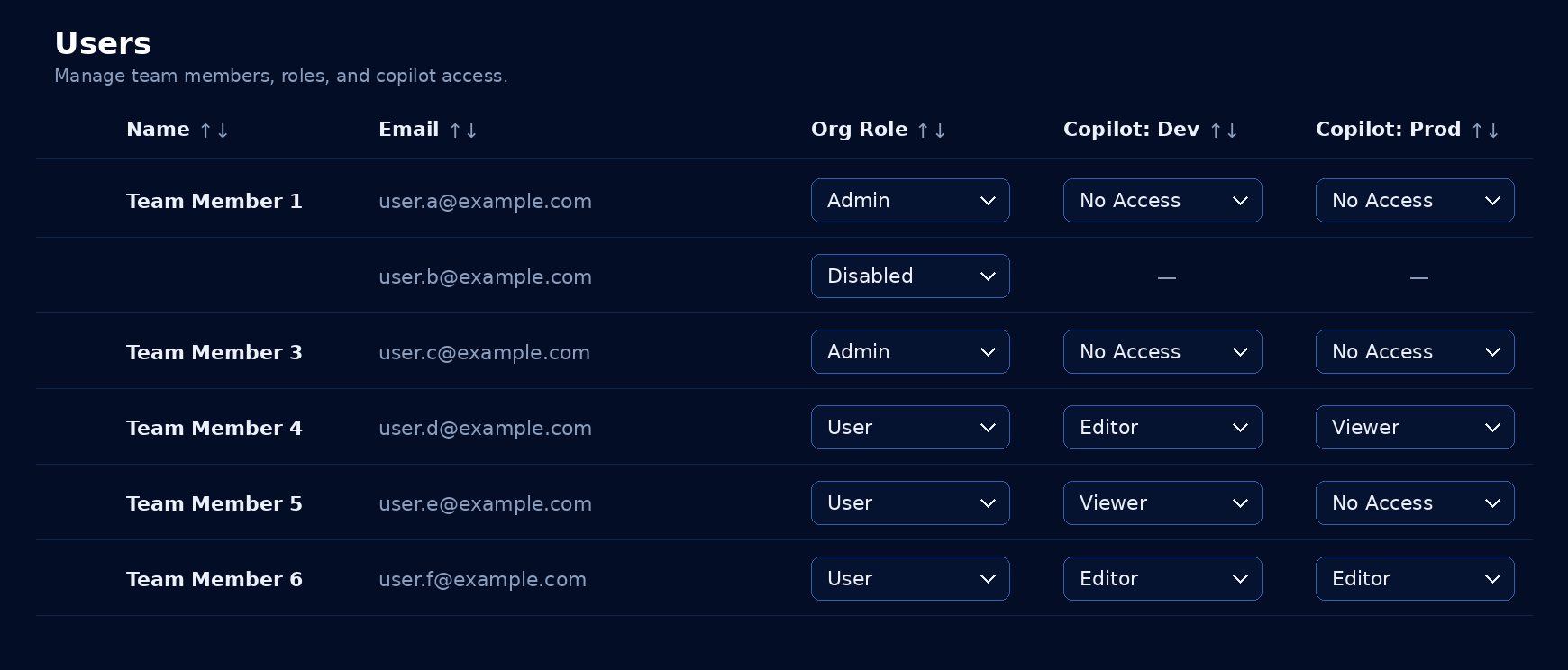
Each row represents one user in your organization. Admins can change any user's Org Role and Copilot access for each environment directly from this screen. Only Admins see this tab by default.
Columns:
| Column | What it controls |
|---|---|
| Name / Email | Identity of the team member |
| Org Role | Platform-wide role (Admin, User, or Disabled) |
| Copilot: Dev | This user's access level in the Dev Copilot environment |
| Copilot: Prod | This user's access level in the Prod Copilot environment |
Copilot access is tracked per environment, so a user can have full access in Dev while remaining a Viewer in Prod, for example.
Org Roles
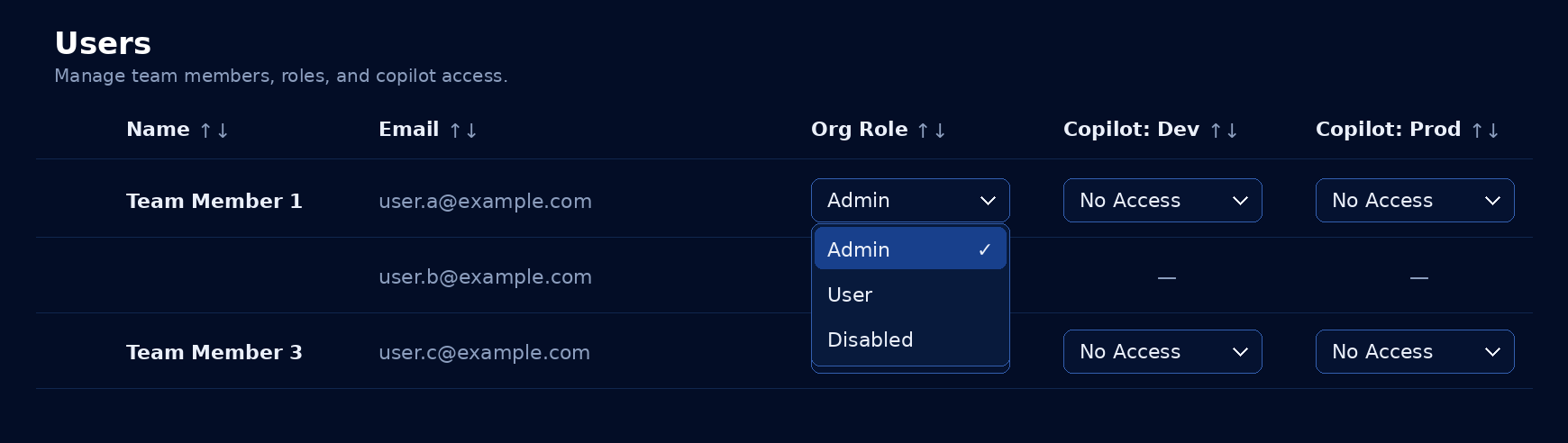
There are three Org Roles. Set them from the Org Role column dropdown.
Admin
Admin is God mode. Admin permissions override every other setting on the account. Admins can:
- See the Users tab and manage all team members
- Change any user's Org Role
- Grant or revoke Copilot access for any user, in any environment
- Use every standard tool on the platform
- Use Copilot at full-access level in any environment, regardless of the Copilot column setting
Use this for owners and anyone who needs to manage the team.
User
The standard role. A User gets access to:
- Screen
- Parlay Pricer
- Alerts
- All other standard OpticOdds tools
A User does not get Copilot access by default. To use Copilot, they must be granted access through the per-environment Copilot columns (see below).
Disabled
A Disabled account cannot sign in or use any part of the platform. Use this to remove access without deleting the user. Disabled users show — in the Copilot columns because environment access is not applicable.
Copilot Access (per environment)
Each Copilot environment (Dev, Prod) has its own access setting per user. The same four levels apply to each environment.
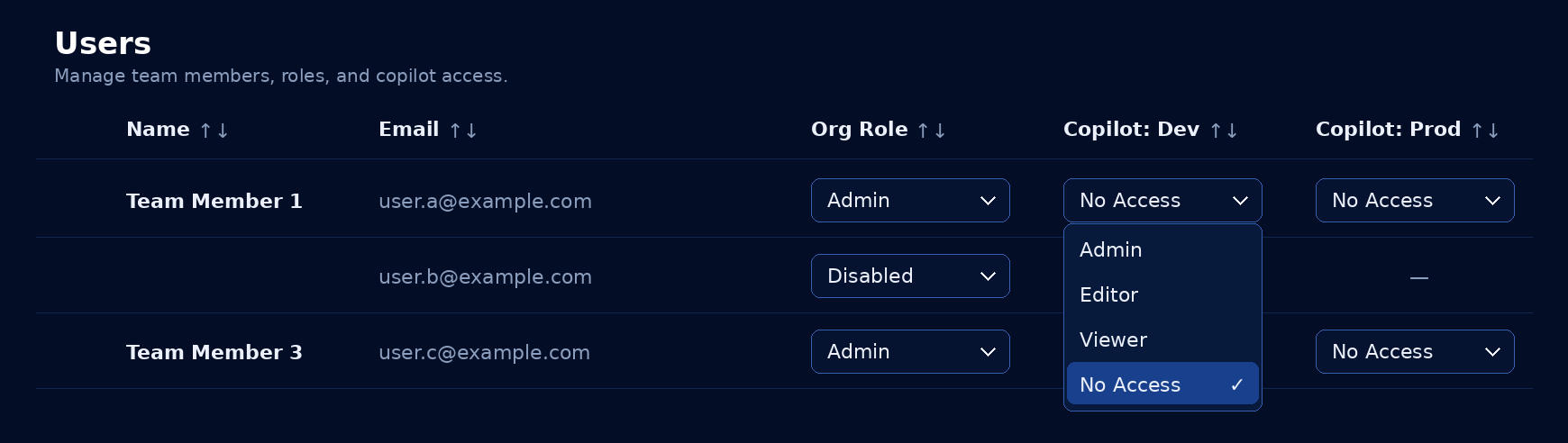
No Access
The user cannot see or open the Copilot tabs for this environment. This is the default for new Users.
Viewer
The user can see the Copilot tabs and inspect configurations in this environment, but cannot change anything. Any attempt to save or edit will return an error.
Use this when someone needs visibility but should not make changes.
Editor
Full editing access except for deletion. Editors can:
- View all Copilot configurations
- Create new configurations
- Edit existing configurations
Editors cannot delete configurations. Use this as the default for most operational team members.
Admin (Copilot Admin)
Complete control of this Copilot environment, including the ability to delete configurations. Use this for team members who own the environment.
Note: Copilot "Admin" (the per-environment access level) is different from Org "Admin" (the platform-wide role). An Org Admin automatically has full Copilot access in every environment. A Copilot Admin only has full control in the environments where they've been granted that level.
Quick reference
| Capability | No Access | Viewer | Editor | Admin |
|---|---|---|---|---|
| See Copilot tabs | ✗ | ✓ | ✓ | ✓ |
| Read configurations | ✗ | ✓ | ✓ | ✓ |
| Create configurations | ✗ | ✗ | ✓ | ✓ |
| Edit configurations | ✗ | ✗ | ✓ | ✓ |
| Delete configurations | ✗ | ✗ | ✗ | ✓ |
How admins assign access
- Go to Settings → Organization → Users (direct link).
- Find the user in the table.
- Set the Org Role (Admin / User / Disabled).
- For each Copilot environment (Copilot: Dev, Copilot: Prod), pick the access level (No Access / Viewer / Editor / Admin).
Changes take effect immediately. The user's next page refresh clears their permissions cache automatically — they do not need to log out and back in.
Recommended setup pattern
For a typical operations team:
- Promote the person who runs the team to Org Admin. They configure everyone else.
- Set the rest of the team to Org Role = User.
- Grant Copilot: Dev = Editor for anyone building or iterating on configurations.
- Grant Copilot: Prod = Editor for anyone deploying to production, and Viewer for anyone who only needs to inspect prod.
- Reserve Copilot Admin (per environment) for the small group that owns deletions in that environment.
Teams using this pattern have reported standing the system up in well under an hour.
End-user perspective
If you are a User (not an Admin), here is what you will and won't see:
- You will not see the Users tab — only Admins manage team access.
- If you have No Access to a Copilot environment, the Copilot tabs for that environment will not appear in your navigation.
- If you have Viewer access, the tabs appear and you can browse everything. Trying to save a change returns an error.
- If you have Editor access, you can create and edit freely. Attempting to delete returns an error.
- If you have Admin access in that environment, you can do everything including delete.
Need different access? Ask your Org Admin to update your row in the Users tab. Changes take effect on your next refresh.
Updated 5 months ago